search for it

Saturday, November 5, 2011

ASUS ML248H: Thin for the Win?

Introduction and Hardware Impressions
The stand for the ML248 is unlike any monitor stand I’ve seen before. Comprised of a pair of rings that lock together and then into the rear of the display, this allows for tilt and swivel adjustments but no height adjustment. It is dead simple to install, though, which is nice. The back of the display is a white plastic that stands out compared to the standard black, though likely it won’t be seen much of the time. Perhaps because of the slim profile of the display, there is only a single HDMI input and one D-sub input, but no DVI or DisplayPort inputs available. There is also a 3.5mm headphone jack for listening to audio carried over HDMI, but no integrated speakers or USB hub in the display. Of course if you were to wall mount this, good luck in getting to that headphone jack.

The front of the display is a shiny black with a fairly thin bezel around the top and sides of the screen, but a very large bezel at the lower half of the display. Perhaps the large bezel at the bottom is necessary to house the electronics and inputs while keeping the overall thin profile, but it causes a couple of issues in my use. The first is that it raises the display up by a few inches compared to if it had no bezel at the bottom. Depending on the height of your desk this might not matter, but for me it puts the display at such a height that I can’t get the angle I want on the display; it makes placement a bit harder and more limited in my experience compared to no bezel.
Another complaint is that the ML248H has LED lit controls that are touch sensitive buttons, but they’re annoying to use in practice. The labels of the buttons disappear until you hit a button to light them up, but that also causes a menu to pop up on the screen. Since you can’t see which menu option you’re selecting until after you touch the panel, you almost always have to back out of that initial menu and then pop up the correct one. Having the initial touch just light up the buttons and the second touch pop up the menu would be far more user friendly. I’m still a fan of actual buttons over touch sensitive ones for my display adjustments as well, but that would ruin the look of the ASUS. On the bright side, the buttons are accurate in responding to touches and I didn’t find myself having to hit them repeatedly to get them to respond.
The one final issue caused by using such a thin display is that the monitor can’t use a standard IEC cord but instead has an external power brick that you will now have to hide away as well. I’m sure most people won’t have an issue hiding the cord and adapter away, but it does make for more of a wiring mess than a typical IEC power cord would.
Here’s an overview of the full display specs:
ASUS ML248
Video Inputs HDMI 1.3, D-sub
Panel Type TN
Pixel Pitch 0.2768 mm
Colors 16.7 Million
Brightness 250 nits (Typical)
Contrast Ratio 1,000:1 (Typical)
Response Time 2 ms (GTG)
Viewable Size 24"
Resolution 1920x1080 at 60 Hz
Viewing Angle 170 degrees horizontal, 160 degrees vertical
Backlight LED
Power Consumption (operation) < 30 W
Power Consumption (standby) < 1W
Screen Treatment Antiglare with hard-coating 3H
Height-Adjustable No
Tilt -5 degrees to +20 degrees
Pivot No
Swivel -20 degrees to +20 degrees
VESA Wall Mounting Yes: 100 mm x 100 mm
Dimensions w/ Base (WxHxD) 572mm x 431mm x 221mm
Weight 9.04 pounds with stand
Additional Features Headphone Jack (rear)
Limited Warranty 3 Years Limited Parts and Labor
Accessories Power adapter, VGA cable, HDMI to DVI Cable
Price $200
OSD Menus

The OSD menus for the ASUS are pretty well designed overall. The touch sensitive buttons are well spaced and respond well to touches, so you don’t have to hit them multiple times to get an input or worry if you’re hitting the correct one. The main issue, as noted above, is that since the labels for the buttons are hidden until you actually press a button, and you don’t know which one to hit for the menu until you actually try one. That might put you into the brightness or contrast adjustments, and then you have to navigate back out into the main menu. I wish the labels would either stay illuminated (well, that might be a different sort of annoying), or better would be to have the first touch light up the menus instead of selecting an option.

Dell Vostro V131: A Budget Business Laptop

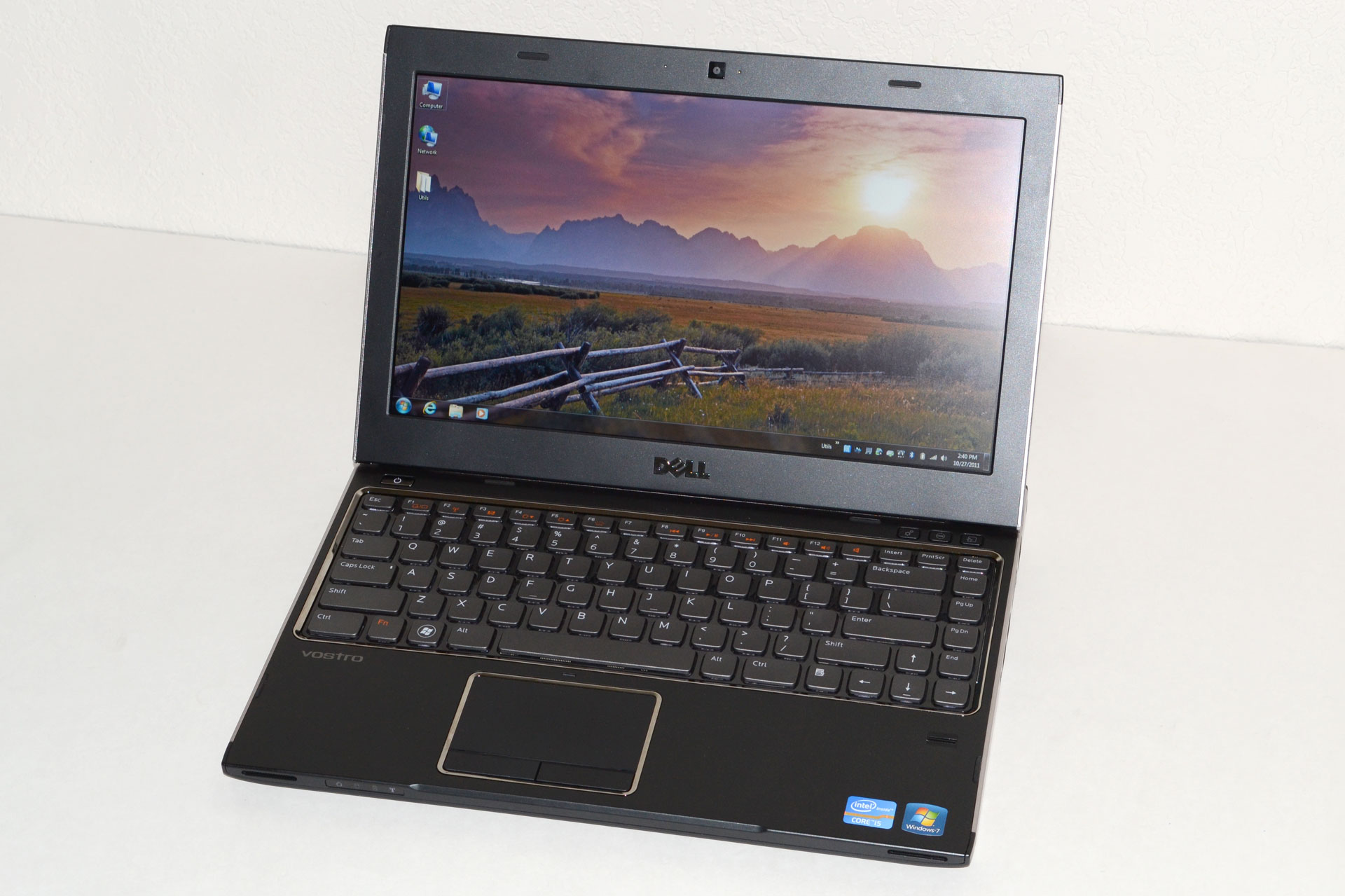
Dell Vostro V131: What’s in a Name?
We’ve reviewed just about every line of laptops that Dell makes over the years, but we haven’t had a chance to look at the Vostro line until today. Vostro is essentially Dell’s entry-level business laptop brand, with an emphasis on business-class options while maintaining a lower price point than the Latitude line. What that means is you give up some of the performance options of Dell’s consumer lines, but you get a default 1-year warranty with next business day service along with a matte LCD. The V131 we received for review is also quite thin, nearly at ultrabook levels, which raises an interesting question: how does an $800 business laptop compare with ultrabooks and other thin-and-light laptops?
Let’s start with a brief overview of what makes something an ultrabook, as we can then easily see where the V131 falls short. We’ve covered this before, but here’s the short version: an ultrabook needs an SSD (or at least SSD caching), it needs to be “secure” (e.g. include Intel’s Identity Protection Technology), it needs to be at mainstream prices (under $1000), and it needs to be thin—really thin—0.8” thick or less to be precise. The Dell Vostro V131 already hits most of these areas, but it doesn’t have an SSD and even with the stock 4-cell battery it’s 0.83” thick. So, it’s not an ultrabook, but does that even matter?
If you put an SSD in a 4-cell V131, I’d say it’s close enough for all practical purposes. The problem is that the 6-cell extended capacity battery bumps the thickness up to 1.25”; it’s one thing to compare 0.83” with <0.8” thick, but when the comparison becomes 1.2” vs. ultrabooks there’s a noticeable increase in size. Still, I find the V131 to be “thin enough” for my purposes, particularly when we factor in the improved battery life. As for SSDs, you can’t configure the V131 with an SSD from Dell, but they’re easy enough to add on your own—and you also get to choose which particular brand/model of SSD you want rather than going with whatever Dell selects. What will be more interesting to see over the coming months is how much of a difference the ultrabook features and specs make compared to “regular” laptops like the Vostro.
Here’s the full overview of our test system features and specifications. We were shipped a higher-end configuration, and we’ve bolded the component choices where applicable in the following table. Other Vostro V131 models come with lower cost (and lower performance) CPUs, HDDs, and memory configurations.
Dell Vostro V131 Specifications
Processor Intel Celeron ULV 847 (dual-core, 1.10GHz, 2MB L3, 17W)
Intel Core i3-2310M (dual-core + HTT, 2.10GHz, 3MB L3, 35W)
Intel Core i3-2330M (dual-core + HTT, 2.20GHz, 3MB L3, 35W)
Intel Core i5-2410M (dual-core + HTT, 2.30-2.90GHz, 3MB L3, 35W)
Intel Core i5-2430M (dual-core + HTT, 2.40-3.00GHz, 3MB L3, 35W)
Chipset Intel HM67
Memory 2GB (1x2GB DDR3-1333, 1 free SO-DIMM)
4GB (2x2GB DDR3-1333)
6GB (1x4GB + 1x2GB DDR3-1333)
Graphics Intel HD Graphics (Celeron)
Intel HD 3000 Graphics
Display 13.3” WLED Matte 16:9 768p (1366x768)
(LG 133WH2)
Hard Drive(s) 320GB 7200RPM HDD
500GB 7200RPM HDD (Toshiba MK5061GSYN)
Optical Drive N/A
Networking Gigabit Ethernet(Realtek RTL8168/8111)
802.11n WiFi + Bluetooth 3.0 (Intel Wireless-N 1030)
WiDi Ready
Optional 3G/4G Mobile Broadband
Audio Stereo Speakers
Headphone jack
Battery 4-cell, 44Wh
6-cell, 11.1V, ~5.7Ah, 65Wh
Front Side N/A
Left Side Memory Card Reader
Exhaust vent
1 x USB 2.0
HDMI
Right Side Headphone Jack
2 x USB 3.0
VGA
Gigabit Ethernet
Back Side AC Power Connection
Kensington Lock
Operating System Windows 7 Professional 64-bit
Dimensions 4-Cell: 12.96" x 9.36" x 0.63-.83" (WxDxH)
(329.3mm x 237.6mm x 16.1-21.0mm)

6-Cell: 12.96" x 9.36" x 0.72-1.25" (WxDxH)
(329.3mm x 237.6mm x 18.3-31.8mm)
Weight 4.03 lbs (6-cell) / 1.83kg
Extras 1MP Webcam
86-Key backlit keyboard
Flash reader (SD, MS, MMC)
MS Office 2010 Starter
65W Power Adapter
Warranty 1-year warranty with NBD on-site service standard
Up to 3-year extended warranties available
Pricing Starting Price: $499
Reviewed Configuration: $859 (with 6GB RAM)
($659 with coupon code HCQL82SHPFRSC$)
Now that we’ve listed the specs, let’s clarify a few things. First, the 4-cell battery is quoted as an option on the spec sheet, but it doesn’t actually show up on the current four configurations. The 6-cell battery lifts the back of the laptop up about half an inch, making it quite a bit thicker. We pulled out some measuring tape and found that the front was a bit higher off the table surface than the quoted .63”, but more importantly the back is 1.25” thick with the 6-cell battery. (Measuring without the battery, the back of the laptop is 0.81” thick.) So it’s definitely thicker than an ultrabook, and the bulkier 6-cell battery really pushes it out of ultrabook contention, but otherwise the specs look pretty good on the $800 model.
The CPU offerings cover quite a wide spectrum, and your choice of CPU also influences other elements. The base model $500 V131 comes with a Celeron ULV 847 and 2GB RAM, with no option to upgrade either component (though you can still do so on your own). The Celeron 847 is a 17W part, which sounds good from a battery life perspective, but with a clock speed of 1.1GHz and only two cores it’s not going to be much faster than the old Pentium SU4100. The next bump up costs $100 more but gives you a 2.2GHz clock on the i3-2330M, plus Hyper-Threading; you also get the ability to customize the RAM and hard drive configuration.
The top-end configuration comes with an i5-2430M, 4GB RAM, and a 500GB hard drive. Our review unit is slightly out-of-date and comes with an i5-2410M, but that shouldn’t matter much, and it also has a $60 upgrade to 6GB RAM. Normally priced at $859, Dell is currently running a coupon code on the top-end model that drops the price $200. Needless to say, $659 for the i5-2430M configuration is a very reasonable price, particularly when you consider the warranty.
As a business class laptop, the Vostro line comes with next business day (NBD) on-site service standard. I’ve supported Dell systems in the past, and their NBD service worked very well. Unless something has changed, you basically call up and give them a description of the problem, and the next day someone shows up with either replacement parts (or potentially a replacement laptop). I never had issues with their local service provider, and compared to the runaround you often get with consumer support it’s hard to overstate the importance of fast service for business users. If you’re at a company that’s large enough to have an IT department, it probably doesn’t matter much, but for smaller companies minimizing downtime is critical. Bumping up to a 3-year NBP warranty is also priced at just $80; that compares to a $119 charge to do the same on an Inspiron 14z, or $299 (WTF!?) to get a 3-year warranty on the XPS 15z. (Note: all of those prices I just quoted are liable to change, sometimes by a large amount, at any given time.)
While the specs may not be enough to set the world on fire, business generally aren’t interested in the bleeding edge. Instead, they want a well-built laptop that will stand the test of time, and while the Vostro V131 may not include the spill resistant keyboard or magnesium alloy frame of a Dell Latitude, the V131 does try to strike a nice balance between features, build quality, and cost. It also looks unassuming (unless you get the red version), which is what most companies prefer. So how successful is the V131 at maintaining that balance? Let’s dig a little deeper.

Source: AnandTech.com

Apple iPhone 4S: Thoroughly Reviewed

History loves to repeat itself, and even Apple isn’t immune to the yearly cycle of rumor and release. Leading to each year’s iPhone refresh, excitement, rumors, and hype build to a fever pitch, features and designs are added into an increasingly unrealistic combination, and finally everyone is silenced at the device’s eventual unveiling.
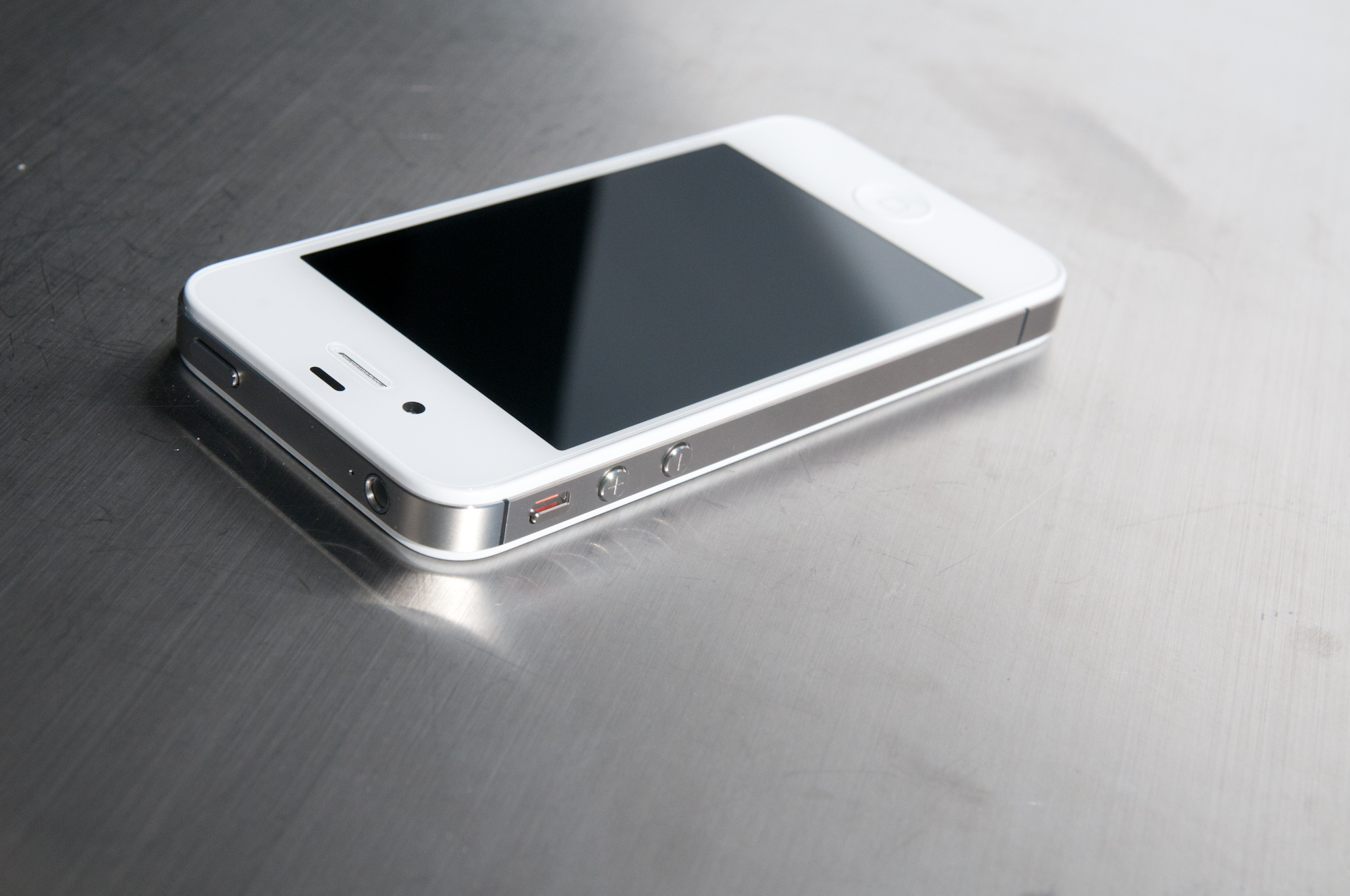
Today we’re looking at Apple’s latest iPhone refresh, the iPhone 4S (henceforth just 4S).
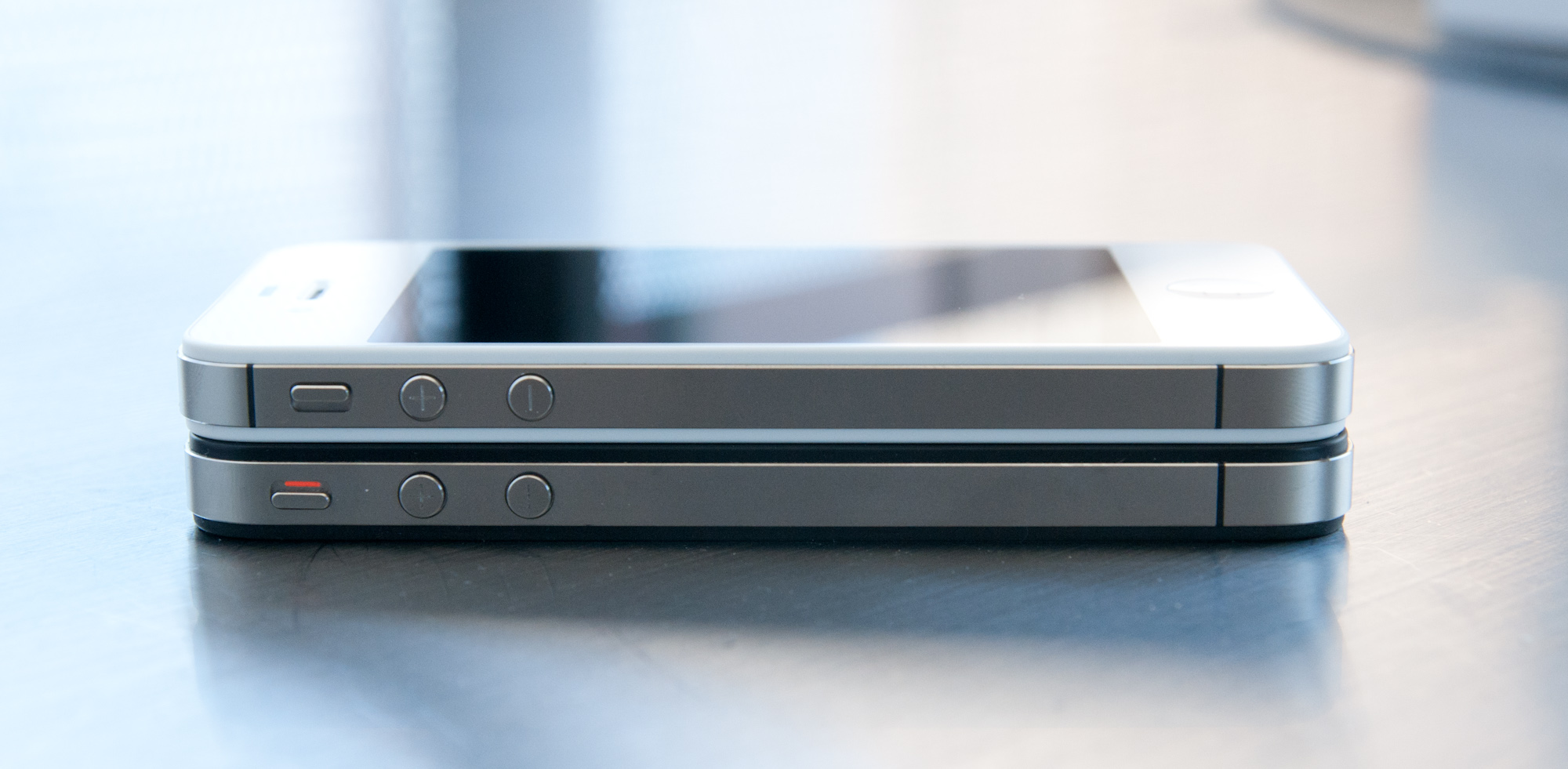
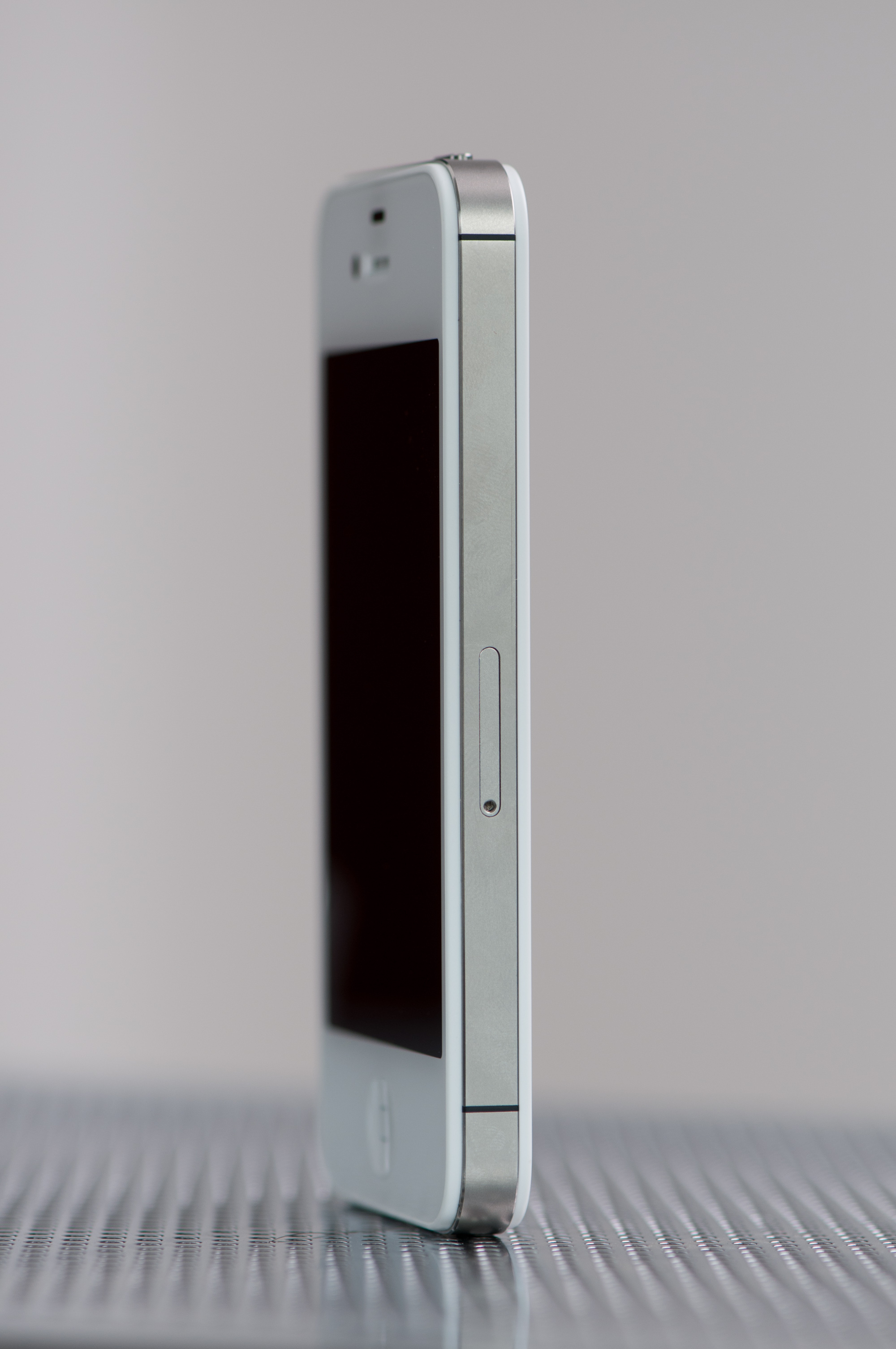
The review has to start somewhere, and the path of least resistance is usually just exterior appearances - in this case the 4S is easy to go over. The 4S keeps the overall form factor and design of its predecessor, but to call it identical to the iPhone 4 isn’t entirely correct. Instead, the 4S borrows its stainless steel band break locations from the CDMA iPhone 4, which we talked about extensively when it finally released. The GSM/UMTS iPhone 4 previously had three notches, where the CDMA iPhone 4 and 4S have a total of four.

Top: iPhone 4S, Bottom: iPhone 4
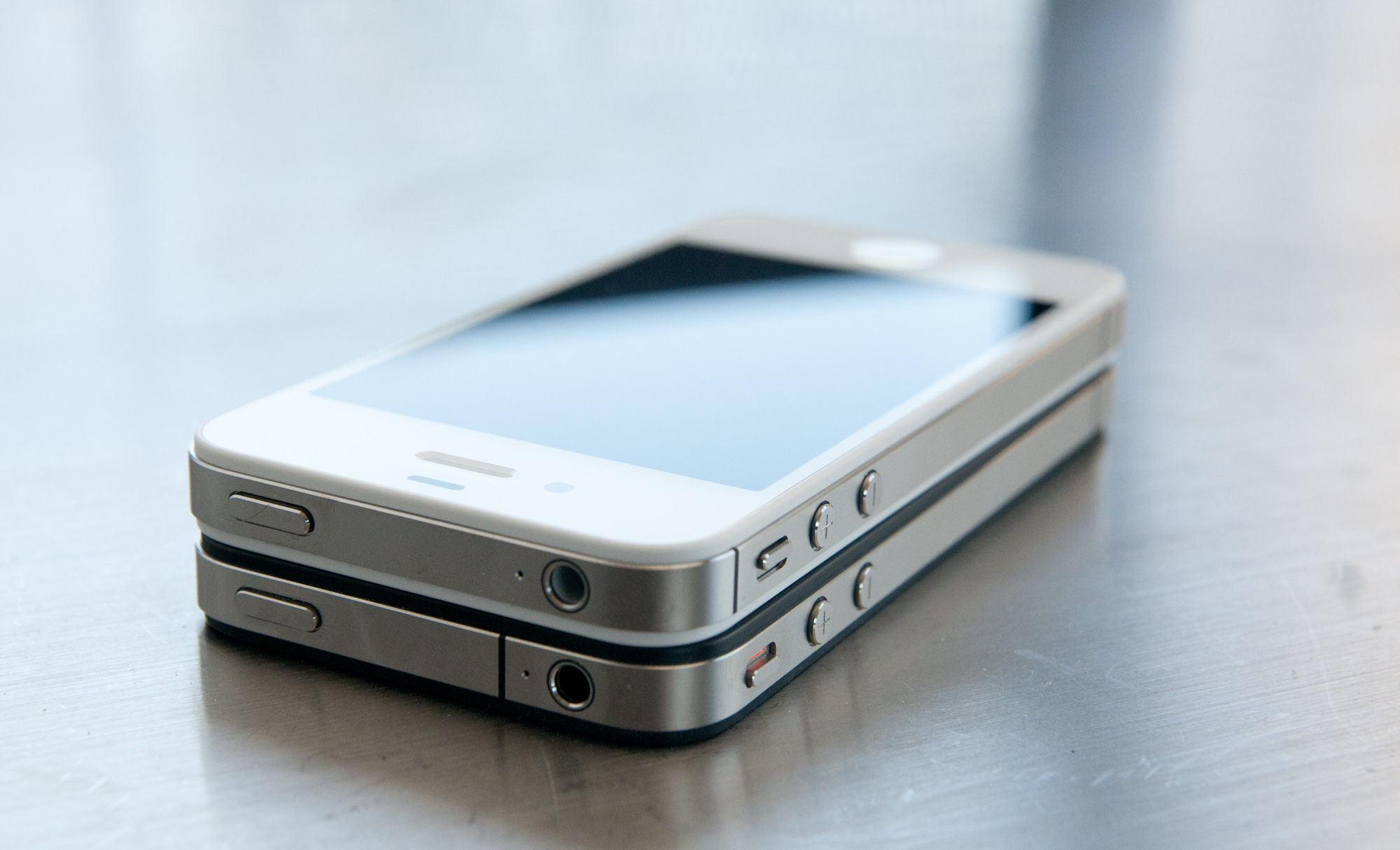
The long and short of this change is that the notches have been moved around to accommodate a design with two cellular antennas. One is up at the very top, the other is at the very bottom - the two are the small U shaped portions. The result of this change is that the 4S has a very symmetrical design, as opposed to the GSM/UMTS 4’s asymmetric layout.
Top: iPhone 4S, Bottom: iPhone 4
Just like the CDMA iPhone 4, the 4S also moves the vibrate/lock switch down the device just slightly to accommodate the new break for the top antenna band. This is the physical change that breaks compatibility with cases designed for the older GSM/UMTS iPhone 4. If you recall previously, however, Apple refreshed its bumpers with a new “Universal” line around the time of the CDMA iPhone 4 launch. At that time, case makers also followed suit with a larger vibrate/lock switch port. The result is that if you have a “universal” case created after the launch of the CDMA iPhone 4, you likely won’t need a new one for the 4S.
I say likely because some cases that cover the front of the 4S and are universal might not work as well owing to a small change in the placement of the 4S’ ambient light sensor. It’s going to be a case by case basis to determine which 4 cases that cover the front of the display work with the 4S.
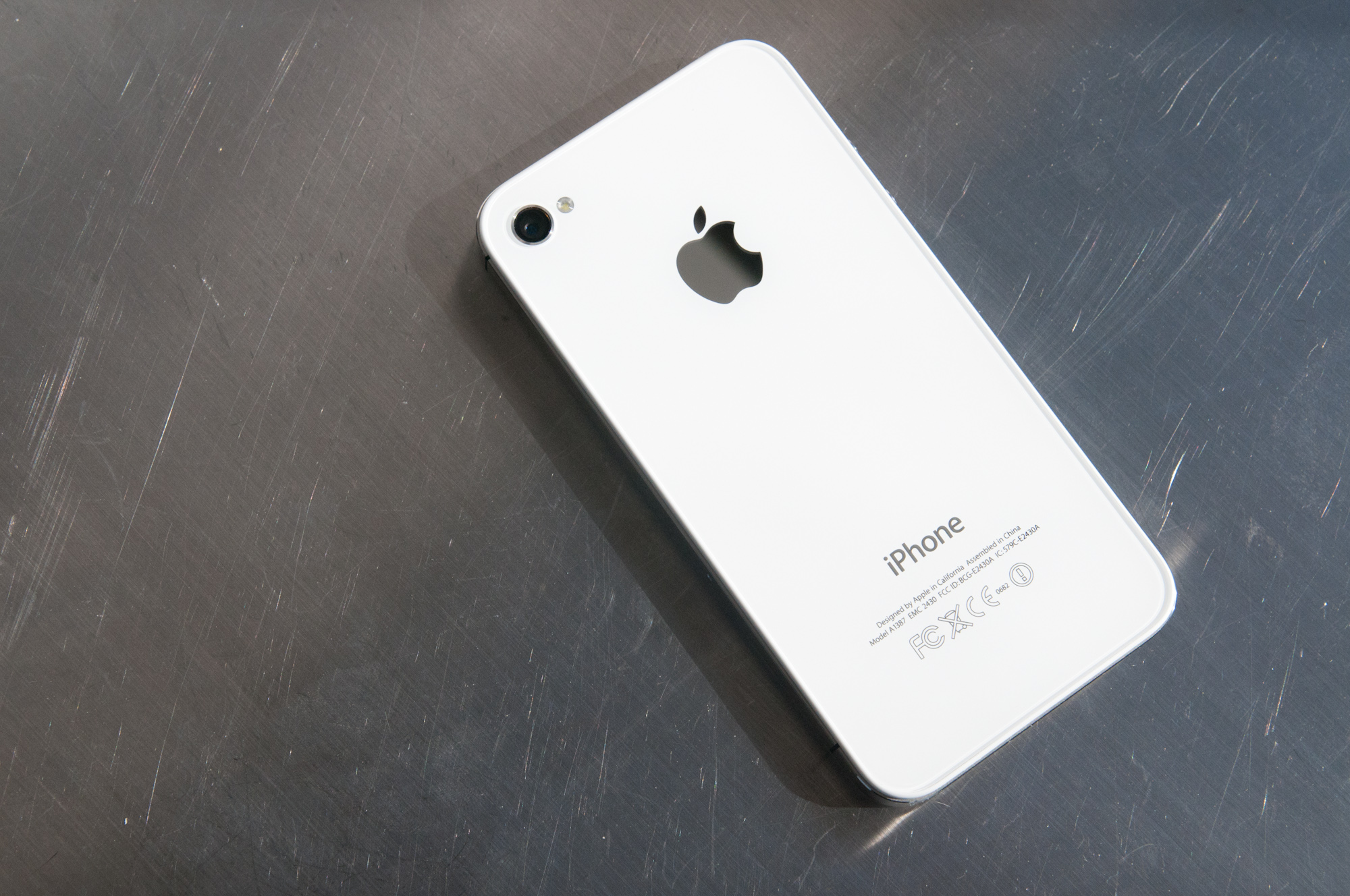
The rest of the 4S exterior is superficially identical to its predecessor, which has become something of a point of contention for shoppers who like being able to identify themselves as owning a 4S, as opposed to a 4. There are, however, subtle differences you can leverage to tell the 4S from its two 4 brethren. The 4S includes the regulatory (FCC, recycling, European Conformity, e.t.c.) logos below its model numbers and FCC ID. The CDMA 4 doesn’t include those logos. Again, the GSM/UMTS 4 is alone with its three-notch stainless steel bands. It is admittedly curious that Apple hasn’t decided to make some other larger change to distinguish the 4S from the other two - there’s no mention of 4S anywhere on the phone. The iPhone 3G and 3GS were famously distinguished from each other by the inclusion of chrome iconography on the back. I fully expect Apple to update their identifying iPhone page with basically the above information at some point in time, but to say that the 4S is identical to the previous device is disingenuous.
The 4S design is without a doubt, however, an evolution of the CDMA iPhone 4’s design. Like the latter, the 4S includes the same improved vibration unit instead of the counterweight vibrator that most smartphones include. The result is a virtually silent, completely smooth vibrate, instead of the louder rattle and sharp acceleration that accompanies the counterweight vibration. The result is much less conversation-interrupting noise when the 4S vibrates during a call, and less intrusive notification.

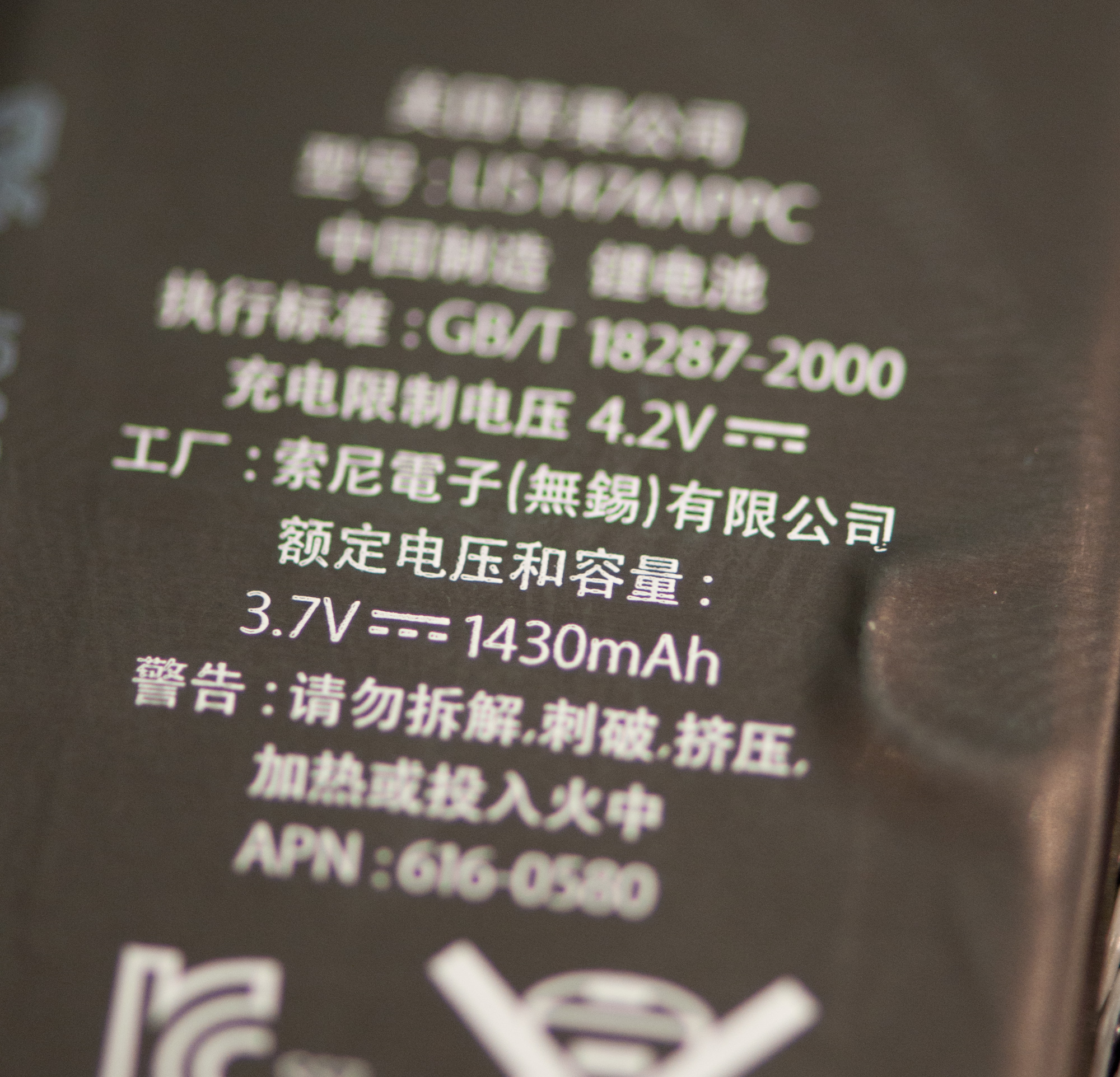
Battery capacity up to 1430 mAh
The other subtle change is an extremely small jump in battery capacity, from 1420 mAh in the 4 to 1430 mAh in the 4S. This is a very small change that boosts the capacity in watt-hours from 5.25 to 5.3. In addition the 4S puts on a little bit of weight, from 137 to 140 grams, but again nothing major.

Even the 4S packaging is basically the same as prior versions, including the same design and contents. Inside you get the phone, dock cable, headset mic, and the same smaller 5V, 1A charger that came with the 4.
Physical Comparison
  Apple iPhone 4 Apple iPhone 4S HTC Sensation Samsung Galaxy Nexus Samsung Galaxy S 2
Height 115.2 mm (4.5") 115.2 mm (4.5") 126.3 mm (4.97") 135.5 mm 125.3 mm (4.93")
Width 58.6 mm (2.31") 58.6 mm (2.31") 65.5 mm (2.58") 67.9 mm 66.1 mm (2.60")
Depth 9.3 mm ( 0.37") 9.3 mm ( 0.37") 11.6 mm (0.46") 8.94 mm 8.49 mm (0.33")
Weight 137 g (4.8 oz) 140 g (4.9 oz) 148 g (5.22 oz) 135 g 115 g (4.06 oz)
CPU Apple A4 @ ~800MHz Cortex A8 Apple A5 @ ~800MHz Dual Core Cortex A9 1.2 GHz Dual Core Snapdragon MSM8260 1.2 GHz TI OMAP 4460 Dual Core Cortex A9 1.2 GHz Exynos 4210 Dual Core Cortex A9
GPU PowerVR SGX 535 PowerVR SGX 543MP2 Adreno 220 PowerVR SGX 540 ARM Mali-400
RAM 512MB LPDDR1-400 512MB LPDDR2-800 768 MB LPDDR2 1GB LPDDR2 1 GB LPDDR2
NAND 16GB or 32GB integrated 16GB, 32GB or 64GB integrated 4 GB NAND with 8 GB microSD Class 4 preinstalled 16GB or 32GB NAND integrated 16 GB NAND with up to 32 GB microSD
Camera 5MP with LED Flash + Front Facing Camera 8MP with LED Flash + Front Facing Camera 8 MP AF/Dual LED flash, VGA front facing 5 MP AF with LED flash, 1.3MP front facing 8 MP AF/LED flash, 2 MP front facing
Screen 3.5" 640 x 960 LED backlit LCD 3.5" 640 x 960 LED backlit LCD 4.3" 960 x 540 S-LCD 4.65" 1280 x 720 Super AMOLED 4.27" 800 x 480 SAMOLED+
Battery Integrated 5.254Whr Integrated 5.291Whr Removable 5.62 Whr Removable 6.475 Whr Removable 6.11 Whr

Seagate's New Barracuda 3TB (ST3000DM001) Review

Platter density has been the crutch of hard drive makers in recent history. Increasing spindle speeds can reduce random access latency, but at the expense of cost and thermals. Improvements in random access performance via increasing spindle speed pale in comparison to what is possible with solid state storage, not to mention that driving motors at speeds beyond 10,000 RPM becomes quite difficult. The focus on increasing platter density is also difficult, but higher density platters can actually lead to reductions in power consumption rather than the opposite (through a reduction in the number of platters per drive). There's also the fact that if you can cram more data on a single platter there's a direct impact on sequential accesses.

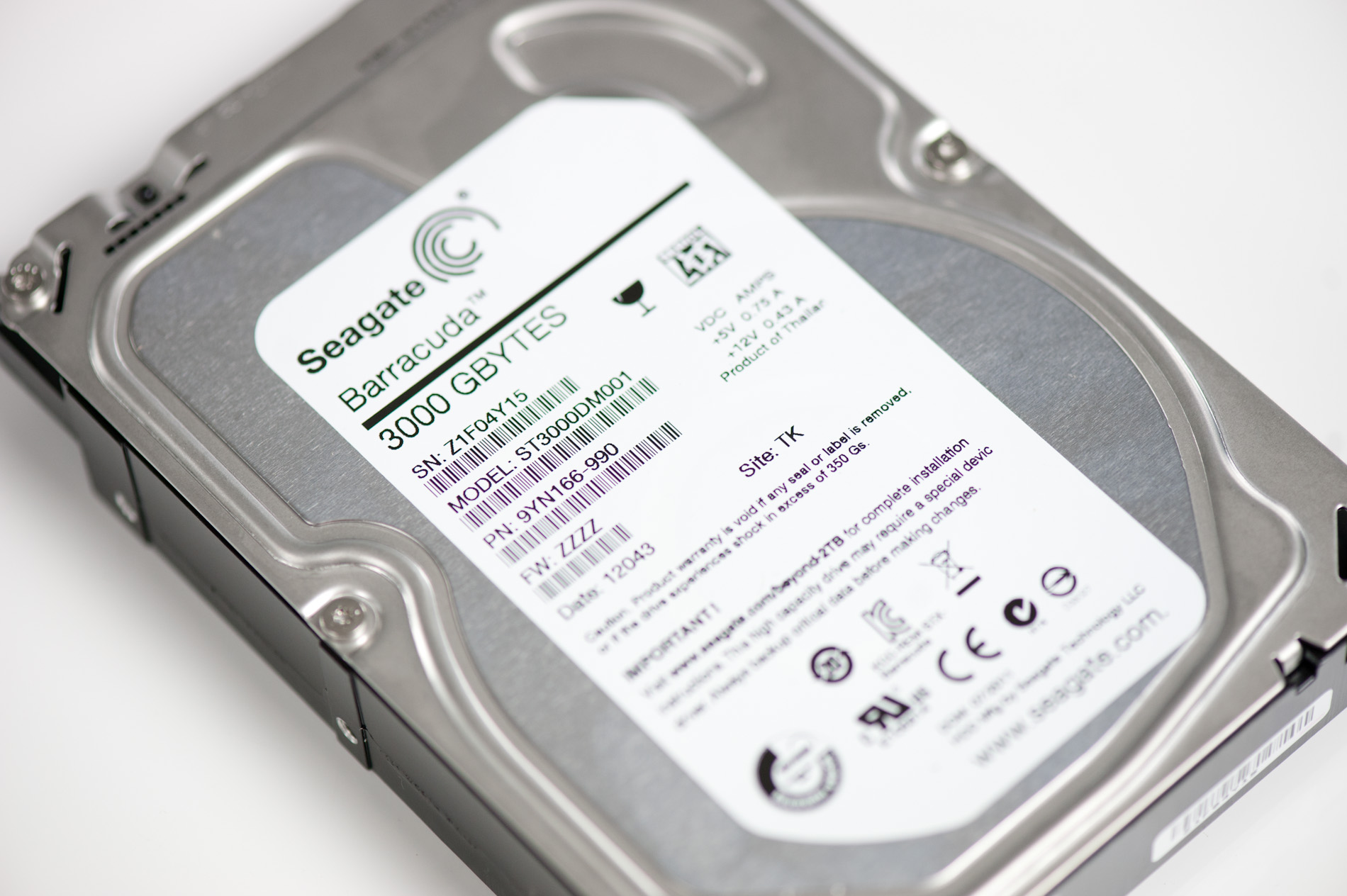
Yesterday Seagate announced its transition to 1TB platters with its new 7200RPM-only Barracuda line. The move marked a significant change for Seagate as it is phasing out the Barracuda Green brand, and shifting the focus of the high-performance Barracuda XT. The Barracuda Green was a rebrand of Seagate's Barracuda LP, designed to convey the lower power consumption enabled by its 5900RPM spindle speed.
Seagate decided that the performance loss of moving to 5900RPM wasn't justified by the power savings. It believed that by introducing a more power efficient 7200RPM drive it could deliver the best of both worlds, negating the purpose of the Green line. For most desktops, Seagate has a point. The couple of watts you save by slowing down the motor aren't really realized in a system that idles at 60W and can consume over 100W under load. On the other hand, the performance drop is definitely noticeable. Hard drives have pretty bad random access performance to begin with, and slowing spindle speed isn't going to help:
Impact of Rotational Speed on Random Access Performance - Barracuda vs Green
7200RPM 5900RPM
4KB Random Write Performance (8GB LBA) 1.20 MB/s 0.90 MB/s
Random write performance goes up by almost 20% when you compare the Barracuda XT to the Barracuda Green. Performance in this test is mostly governed by spindle speed (and firmware), so it makes Seagate's case perfectly.
There is a segment that Seagate isn't considering as it decides to axe the Green line: the home server market. If you're doing mass archival to some external storage, random performance is likely not a big concern. Instead, all you want is cheap, low-power storage.
Come February 2012, if you want a Green drive, you'll have to shop with Western Digital.
At the other end of the spectrum, the Barracuda XT has been Seagate's performance flagship. This brand isn't going away. Instead Seagate will introduce a solid state hybrid drive under the Barracuda XT banner at some point in the future.
Everything else now falls under the bare Barracuda label. High capacity drives should become more power efficient thanks to a reduction in the number of platters, and performance should go up thanks to increased platter density.
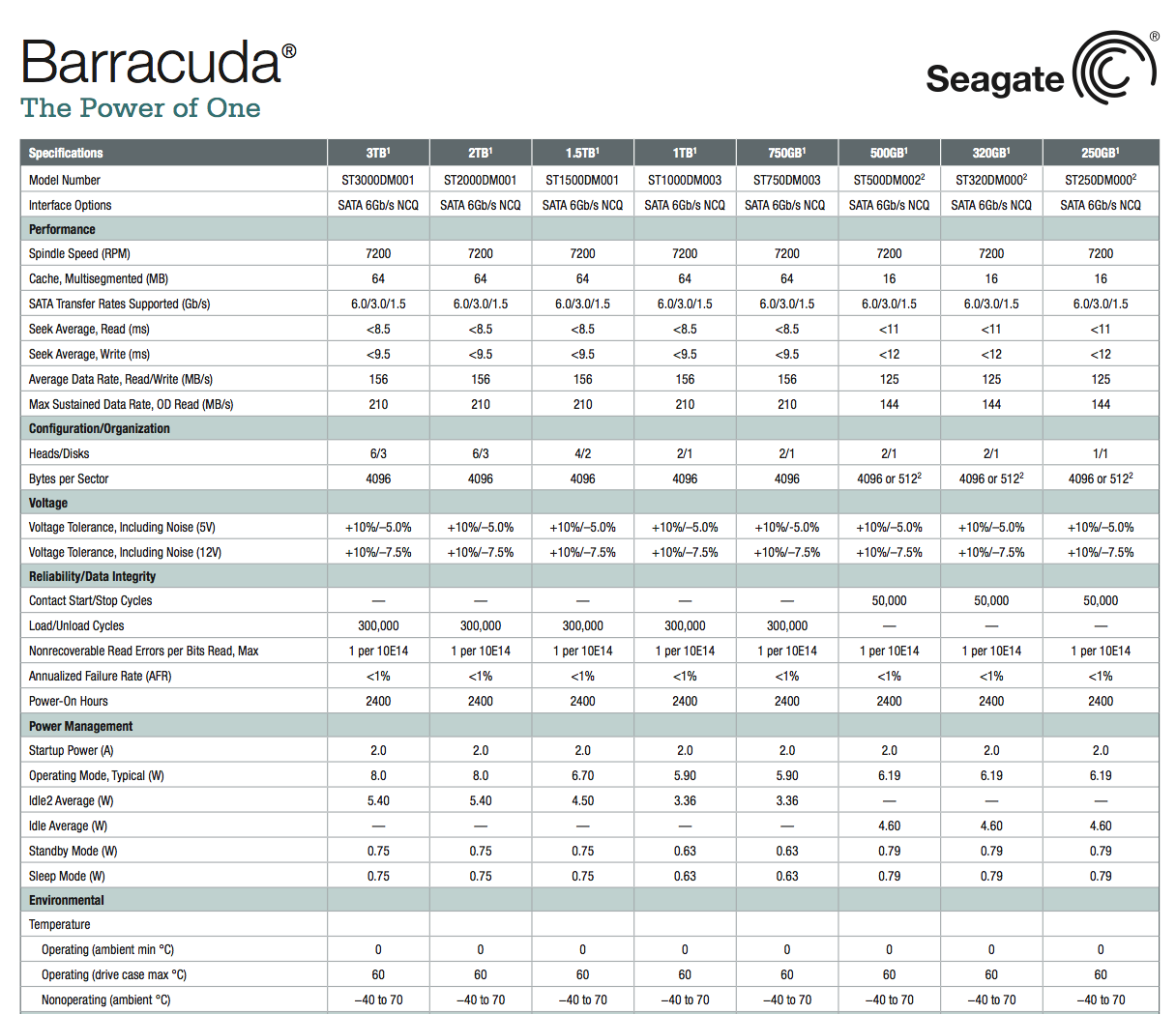
The new 1TB platter drives all carry the M001 suffix to their model numbers:
Seagate's 1TB-per-platter Barracuda Lineup
Model Number Capacity MSRP
ST3000DM001 3TB $179.99
ST2000DM001 2TB $105.99
ST1500DM001 1.5TB $83.99
ST1000DM003 1TB $71.99
Seagate sent along a new 3TB Barracuda for us to put through the paces.

The Performance

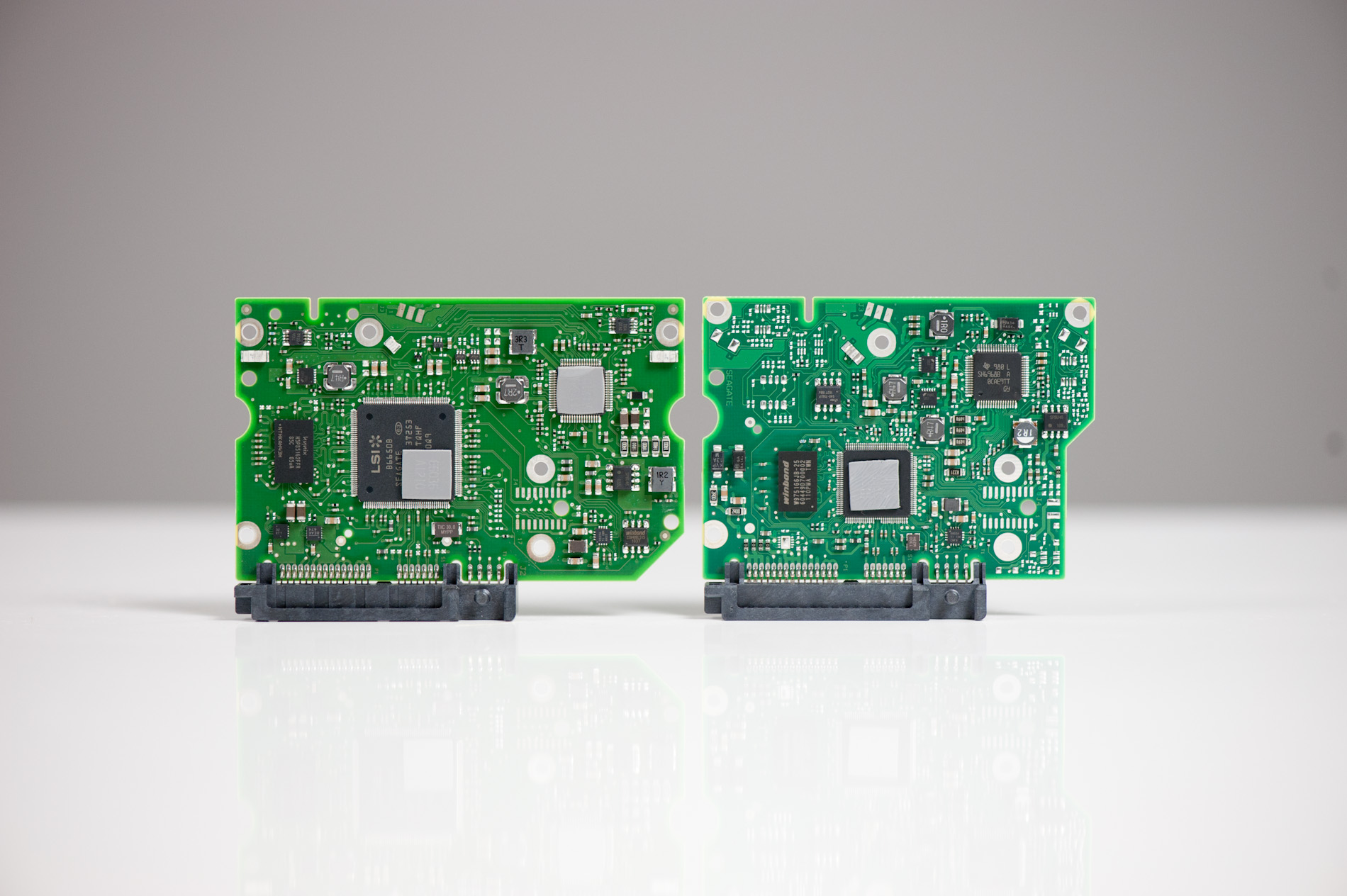
With lower power consumption in mind, Seagate is now using a 40nm dual-core LSI controller on the 1TB-platter Barracudas. The chip is physically a lot smaller than what was used in the original 3TB Barracuda XT:
Seagate continues to use 64MB of DDR2-800 as the Barracuda's DRAM cache.
The big news is obviously the platter count with the new 3TB Barracuda. While the previous drive used five platters, the new 3TB drive only uses three. It's this reduction that Seagate hopes will give it the performance and power advantages necessary to not only move the family forward, but render the outgoing Green redundant.
To find out, we threw some of our storage suite at the drive and compared it to the old Barracuda XT and Green drives. I also ripped the drive out of Seagate's 4TB GoFlex Desk enclosure, a 5-platter Barracuda XT, and included it in the comparisons.
Iometer - 4KB Random Write (QD=3, 8GB LBA)
Random write performance actually dropped a bit compared to the older Barracuda XT. It's still higher than the Green drive, but it looks like Seagate has tweaked the drive's firmware a bit resulting in lower random write performance.
Iometer - 128KB Sequential Read
Iometer - 128KB Sequential Write
Sequential performance is up a bit over the original 3TB Barracuda XT, but about in-line with what we'd expect from a modern day high-capacity drive. Even compared to the latest 4TB Barracuda XT, we see a slight increase in performance.
Despite the sequential performance advantage, PCMark 7 showed the new Barracuda on-par with the Barracuda XT:
PCMark 7 - Secondary Storage Benchmark
I ran the drives through our light and heavy 2011 workloads from our SSD reviews (which takes absolutely forever to run on mechanical drives) and saw some interesting data:
AnandTech Storage Bench 2011 - Light Workload
AnandTech Storage Bench 2011 - Heavy Workload
The Barracuda XT was consistently faster than the new 3TB Barracuda in our trace based benchmarks. Keep in mind that both of these tests were created on and for SSDs. Both tests involve a much heavier usage pattern and demand ultra quick response time, likely giving these hard drives an extremely strenuous workout. While the new Barracuda is faster than the outgoing Green, it seems as if the firmware isn't quite as tuned for performance as the XT. The difference does make sense, particularly if it translates into lower power usage given the new mainstream focused Barracuda lineup.
Drive Power Consumption - Idle
Drive Power Consumption - Sequential Write
Power consumption is obviously lower than the old Barracuda XT, but still not quite as low as a 5400RPM Barracuda Green or WD Caviar Green. If you were expecting the new Barracuda to completely replace the outgoing Barracuda Green you will be disappointed. It looks like if you need a high capacity, low power 3.5" drive going forward it won't be from Seagate.

Final Words

The new 3TB Barracuda is a bit faster in sequential performance than the old Barracuda XT, at lower power consumption. In typical desktop workloads I think it's fairly safe to say that you wouldn't notice the difference between the Barracuda and Barracuda XT.
As our SSD tests showed us however, when really pushed the new Barracuda performs somewhere in between the old Green and the XT. Seagate appears to have optimized the drive's behavior for lower power rather than peak performance. If you want the absolute best performance out of a 3.5" drive, stick with the XT or wait for the new hybrid version.
Given the tremendous advantage SSDs offer over even the fastest 3.5" drives, I'm personally ok with the performance tradeoff under very heavy load so long as you've got an SSD somewhere in your system as well. I'm not sure I particularly agree with Seagate's decision to abandon the 5900RPM drive market, but thankfully there are other options available if you want a high capacity, lower power drive.

.Source: http://www.anandtech.com

EVGA's GeForce GTX 560 Ti 2Win: The Raw Power Of Two GPUs

Back at CES 2011 EVGA showed off an interesting concept card featuring 2 GF104 GPUs on a single board. NVIDIA has long designed multi-GPU cards using their high-end GPUs to carve out a market segment above their top single-GPU cards, but while NVIDIA promotes SLI across almost the entire GeForce spectrum it’s promoted as a multi-card option for anything other than those halo cards. Over the years a handful of AMD and NVIDIA’s board partners have struck out on their own and designed their own multi-GPU boards, and at CES 2011 EVGA joined that club.
The resulting product was the EVGA GeForce GTX 460 2Win, which combined 2 overclocked GTX 460s onto a single board. Unfortunately for EVGA, NVIDIA launched the GTX 560 Ti and its associated GF114 GPU mere weeks after CES 2011. GF104 was (and still is) a very capable GPU, but at the end of the day GF114 allowed the GTX 560 Ti to offer a 30% performance improvement for only a very slight increase in power consumption. The GTX 460 2Win did well enough for EVGA to continue with the design, but like the GTX 460 itself, it was clear that the 2Win design was never going to reach its full potential with GF104.
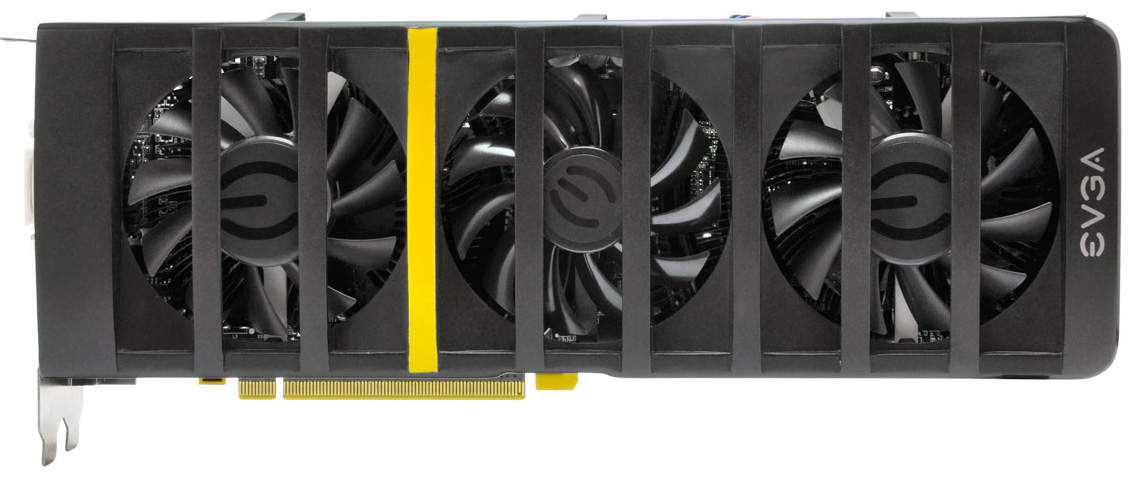
So now in November of 2011 EVGA is back with their next 2Win card: the EVGA GeForce GTX 560 Ti 2Win. Having replaced the GF104 GPUs with GF114 and tweaked the board to handle the extra power consumption, EVGA is giving it another shot. And this time they’re gunning for NVIDIA’s flagship single-GPU card, the GTX 580. Their proposition? For only a little more than the GTX 580 they can offer 30% better performance.
  EVGA GTX 560 Ti 2Win GTX 580 GTX 570 GTX 560 Ti
Stream Processors 2 x 384 512 480 384
Texture Address / Filtering 2 x 64/64 64/64 60/60 64/64
ROPs 2 x 32 48 40 32
Core Clock 850MHz 772MHz 732MHz 822MHz
Shader Clock 1700MHz 1544MHz 1464MHz 1644MHz
Memory Clock 1002MHz (4008MHz data rate) GDDR5 1002MHz (4008MHz data rate) GDDR5 950MHz (3800MHz data rate) GDDR5 1002Mhz (4008MHz data rate) GDDR5
Memory Bus Width 2 x 256-bit 384-bit 320-bit 256-bit
VRAM 2 x 1GB 1.5GB 1.25GB 1GB
FP64 1/12 FP32 1/8 FP32 1/8 FP32 1/12 FP32
Transistor Count 2 x 1.95B 3B 3B 1.95B
Manufacturing Process TSMC 40nm TSMC 40nm TSMC 40nm TSMC 40nm
Price Point $519 $489 $329 $229
EVGA advertises the GTX 560 Ti 2Win as a dual GTX 560 Ti card, and true to their word that’s what it is. It’s an important distinction to make between the 2Win and ultra high end mutli-GPU cards like the GTX 590 and Radeon HD 6990, as both of those are a best effort to squeeze two high-end GPUs into a single card while staying within a 375W power budget under normal operation. The end result is that NVIDIA and AMD have to heavily bin GPUs to find those that will perform at a suitably low voltage, and even then these cards aren’t clocked as high as the single-GPU behemoths they’re based on.
The 2Win on the other hand is exactly what it says on the label. Composed of 2 GF114 GPUs, the 2Win is a GTX 560 Ti SLI setup on a single card, with all of the specs and none of the compromises we see in ultra high end cards. In fact the 2Win is a factory overclocked card, if only slightly – its 850MHz core clock is a mild 3% higher than the 822MHz core clock of the baseline GTX 560 Ti, while the memory clock is identical at 1002MHz (4008MHz data rate). This is paired with 2GB of GDDR5, which is reduced to 1GB of effective VRAM due to the dual-GPU nature of the card.
When it comes to power consumption EVGA doesn’t officially specify a TDP for the 2Win, but given that it’s designed to be a true dual GTX 560 Ti its power requirements closely trend the GTX 560 Ti SLI. In this case that puts the load TDP around 340W, not accounting for any efficiencies gained from having 2 GPUs on a single card or the power consumption of a PCIe bridge chip. As a result this is fairly close to the GTX 590 and Radeon HD 6990, both of which are heavily binned to stay under 375W.
But the real story here of course is the performance for the price. We’ve seen the performance of the GTX 560 Ti SLI in the past, and the performance is quite remarkable. For some time now a pair of NVIDIA’s mid-tier video cards in SLI have been able to surpass a single high-end card, and this performance is the basis of the 2Win. EVGA promotes the 2Win as being more than 30% faster than the GTX 580 and this is something that’s easily achieved in games where SLI scales well.
At the same time the 2Win is priced close to the GTX 580 to further cement its competitive status. EVGA has put the MSRP of the 2Win at $519, which is anywhere between $50 more expensive than the very cheapest GTX 580 to roughly the same price as factory overclocked models. Ostensibly this makes the 2Win more expensive than the GTX 580, but not significantly so given that we’re talking about the high-end video card market. Overall this puts the 2Win in a very good position versus the GTX 580, so long as it can deliver on its 30% performance claims over the GTX 580.
Next to its performance against the GTX 580, the other uses EVGA are using to promote the 2Win are the benefits derived from having multiple GPUs on a single card: namely NVIDIA Surround support. As with the GTX 590, by having 2 GPUs on a single card EVGA can team together the display outputs on the GPUs to drive up to 4 displays, versus 2 displays on a single GPU. This gives the 2Win the ability to drive a triple monitor surround setup on its own, and with 2 GTX 560 Ti GPUs should have the horsepower to do so in most cases. 3D Vision Surround is also a viable possibility thanks to the 3 DL-DVI ports, but the performance hit from 3D Vision is likely more than the 2Win can handle.
Ultimately the 2Win’s status as a multi-GPU card composed of GTX 560 Tis puts it in a unique place. Next to the GTX 580, its only other meaningful competitors are the Radeon HD 6950 CF, and the regular GTX 560 Ti in SLI. The bad news for the 2Win is that these are both cheaper options than the 2Win – you’re paying a price premium to get it on a single card.